How to use WeatherToRun: plan your first run
Choose your running location and units, compare hours you can use, then check the weather and clothing suggestions through the end of your run.
By WeatherToRun, updated
Get hourly running scores and clothing suggestions on iPhone. Free core guidance. No account needed.
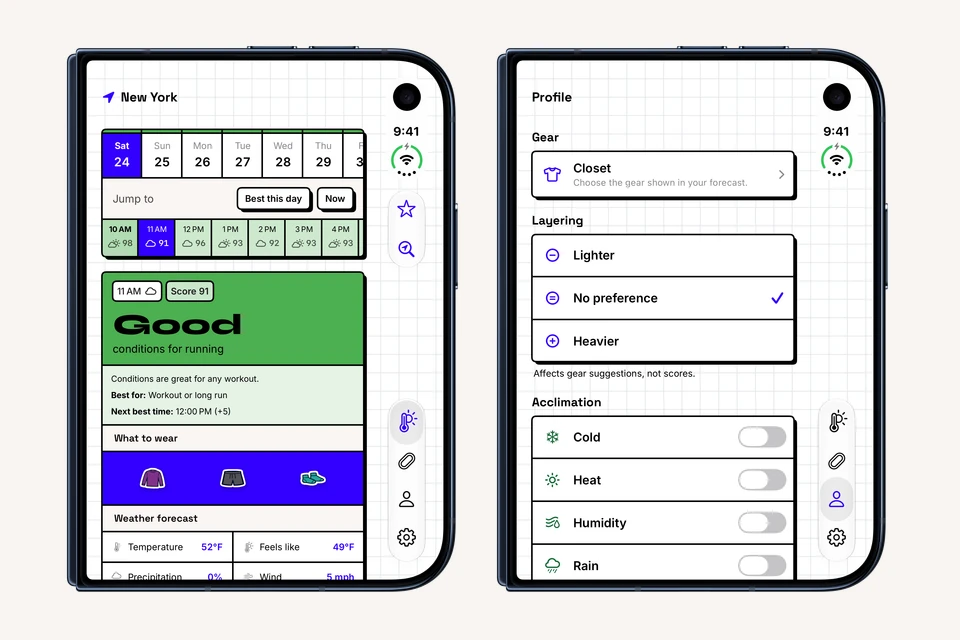
Learning how to use WeatherToRun starts with one useful decision: when can you run, and what will you wear? You do not need to configure every preference first. Choose the right place, compare a few hours you can actually use, and check the conditions and clothing for that window.
This walkthrough follows the iPhone app in version 2.1.26. The real app images show a New York example captured on October 24, 2026, using iOS 27.1 on an iPhone Duo simulator in its closed position. They illustrate the controls, not a current forecast for your run. Core hourly forecasts, running scores and clothing suggestions are free, with no account required.
On this Duo layout, the Forecast (thermometer), Profile (person) and Settings (gear) tab icons run down the right edge. Other iPhone layouts may place them at the bottom.
1. Choose the place where you will run
Open the Forecast tab. Tap the location-and-magnifying-glass button, labeled Change location for accessibility. It is separate from the star used to save a favorite.
- Tap Search for a city and enter your destination.
- Check the state or country beneath the result, especially when several places share a name.
- Tap the matching place to load its forecast.
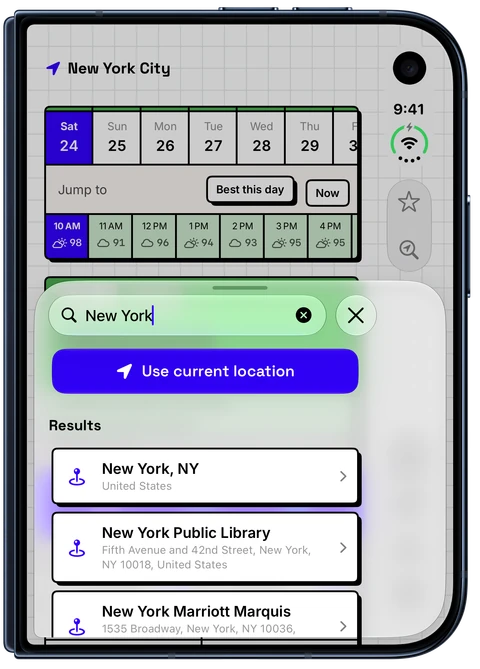
For a first New York run, choose the New York, NY result rather than an unrelated place with a similar name. If you are traveling, select the destination where you will run, rather than leaving the app on your home city.
Use current location is another option. Manual search still works if you prefer not to grant device-location access. Searching for a place and saving it as a favorite are different actions; Plus adds more saved places, while the core forecast remains free.
A city forecast is a starting point. It cannot inspect every park path, exposed waterfront or mountain trail. For a route outside the city, choose a more relevant place and check appropriate local information.
2. Set the units you use outdoors
Open Settings → Appearance, then find Units. Choose Imperial for Fahrenheit, mph, miles and inches. This makes it easier to compare the app with US forecasts and the distances you normally run.
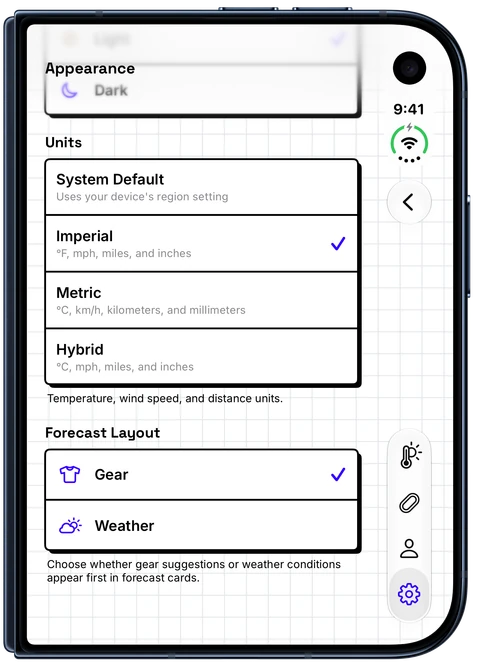
System Default follows your device's region setting. Metric uses Celsius, km/h, kilometers and millimeters. Hybrid combines Celsius with mph, miles and inches. Choose the display you understand most easily; changing units does not change the weather.
Appearance also contains Forecast Layout, where Gear or Weather can come first. If your screen's section order differs from these images, look for the headings What to wear and Weather forecast rather than relying on their position.
3. Compare a date and an hour you can use
Return to Forecast. Select an available date in the top date row, then tap an hour in the horizontal hourly row. The selected hour updates the running score, conditions and clothing suggestions together.
The Jump to controls help you navigate:
- Best this day selects the highest-scoring hour on the selected day. Confirm that the time is still ahead and fits your schedule; an all-day comparison can include an hour that has already passed.
- Now returns to today's current hour.
You do not have to use the highest score. A practical 7 a.m. window may suit your day better than an 11 a.m. window when you cannot leave work. The best-time-to-run guide explains how to make that comparison across the whole session.
Read Weather forecast as well as the 0–100 score. Check temperature and Feels like, wind and gusts, precipitation, dew point and UV. The precipitation percentage describes the chance of precipitation, not how heavily it will rain. Use the rain guide for that distinction.
Air quality and daylight need separate checks: they do not change this weather score. An unavailable air-quality value is missing information, not a clean-air reading. The AQI guide and running-in-the-dark guide cover those decisions. A high score or a “Good” label cannot inspect footing, traffic, your health or local hazards. Check National Weather Service forecasts and alerts separately.
4. Read the clothing suggestions and adjust your profile
Find What to wear for the selected hour. Tap a clothing icon to open its name and explanation. You can swipe through the suggestions in that detail view.
Treat the outfit as a starting point for your run. Wind, rain, duration, effort and your own experience can change what feels comfortable. The running clothing guide provides broader layering advice.
If the suggestions consistently feel too warm or too light, open the Profile tab and find Layering:
- Choose Lighter if you prefer less clothing.
- Keep No preference for the neutral starting point.
- Choose Heavier if you prefer more warmth.
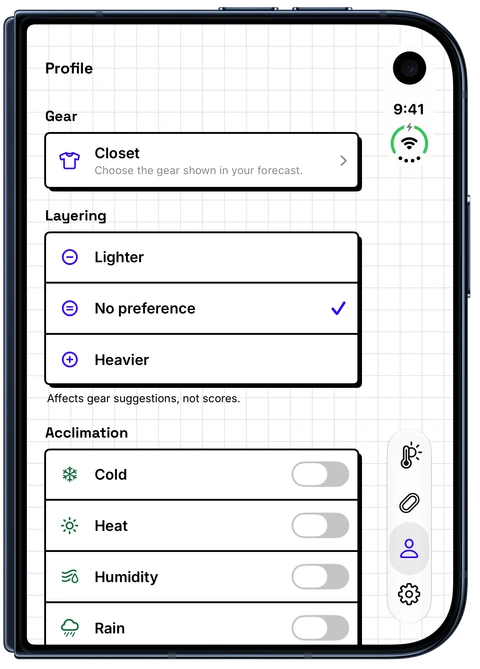
Layering changes gear suggestions, not running scores. Closet, also in Profile, controls which gear appears. If you see “No gear selected,” check Closet before assuming that the weather requires no clothing. These core preferences do not require Plus. Follow the clothing-personalization tutorial for a step-by-step Closet example and help with missing items.
5. Make a plan and recheck before leaving
Try this hypothetical example, separate from the dated screenshots: you want a 45-minute New York park run and can start at 7 or 8 a.m. One candidate hour shows 55°F (13°C) with wind around 8 mph (13 km/h). Those numbers are examples, not today's weather or universal safe-running thresholds.
- Check the correct location and day.
- Compare both possible start hours and the following hour, so you include the finish.
- Read the conditions behind each score and check local alerts, air quality and the route.
- Choose clothing for the selected window, using your layering preference.
- Recheck before leaving and keep a shorter route, different time or indoor option available if conditions change.
For a session starting partway through an hour, look at the surrounding hourly cards. The starting card does not describe the whole outing. Forecasts can also change between planning and departure; pull down on Forecast to request a refresh.
If something looks wrong
- Wrong place: use Change location and confirm the state or country in the search result.
- Unexpected units: choose Imperial explicitly in Settings → Appearance → Units.
- Missing or old weather: check your connection and selected place, then refresh. If a refresh reports an error, retained information is not proof of a new update. A future hour may not yet be available; check again closer to the date.
- Missing clothes: review Profile → Closet and Layering.
You can use this first-forecast routine without upgrading. Optional Plus adds features such as recurring run schedules, custom daily reminder times and additional widget options; you can explore those after the basic routine is useful. See the WeatherToRun app page for the app overview, then start with the place and hours that fit your next run.
WeatherToRun for iPhone
Compare hourly running scores, find a better time, and get clothing suggestions on your iPhone. Core forecasts and gear guidance are free. Extra planning and widgets are available with Plus.
Free to download. No account or ads.