Personalize WeatherToRun clothing suggestions
Choose a layering preference, keep the gear you use enabled in Closet, then compare suggestions for the same forecast hour.
By WeatherToRun, updated
Get hourly running scores and clothing suggestions on iPhone. Free core guidance. No account needed.
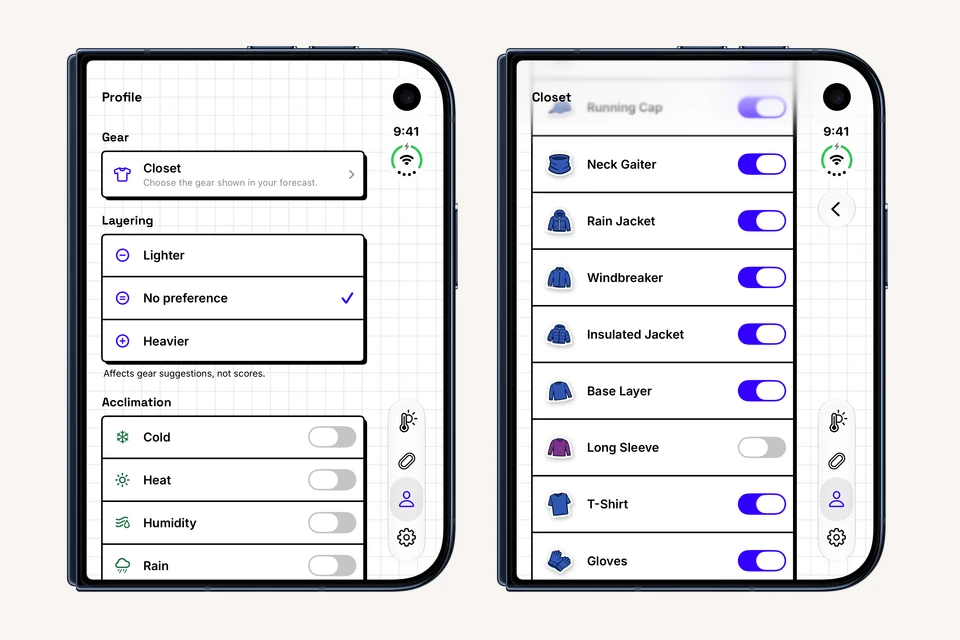
WeatherToRun can suggest a useful starting outfit, but you still know which clothes you use and how you prefer to dress. Two controls in Profile help with that: Layering adjusts your clothing preference, and Closet chooses which gear can appear in your forecast.
Both are available in the free app. You do not need Plus for the steps below. These settings change clothing suggestions, not the weather forecast or running score.
This walkthrough was checked with WeatherToRun 2.1.26. The real screenshots show iOS 27.1 on an iPhone Duo Simulator in its matching device frame. The Duo places navigation icons along the right edge; your iPhone may put them at the bottom. If you have not chosen a location or compared hours yet, start with planning your first run.
1. Choose your layering preference
- Open Profile, the tab with the person icon.
- Find Layering below the Closet row.
- Tap Lighter, No preference or Heavier. The checkmark moves to your choice, which takes effect without a separate Save button.
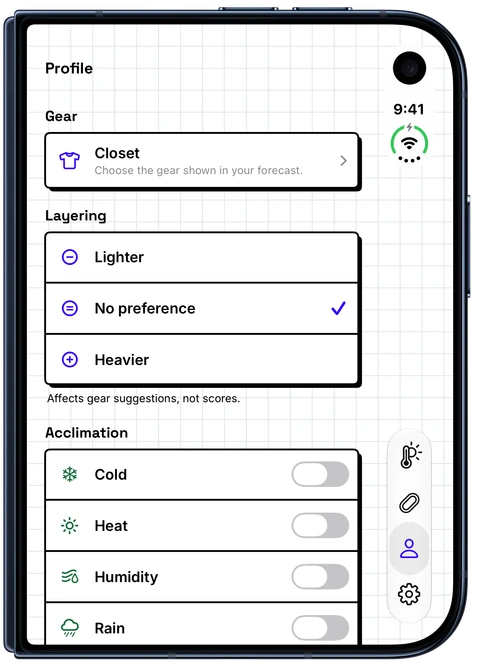
Keep No preference as a baseline if you are still learning what suits you. Try Lighter when previous suggestions repeatedly give you more clothing than you want. Try Heavier when you generally prefer more warmth. Compare a few actual runs rather than treating one uncomfortable outing as a rule for every season.
The app says “Affects gear suggestions, not scores.” You are changing how it selects clothing, not asking it to make a cold or windy forecast more favorable. Acclimation and Safety Limits are separate controls; neither needs changing to follow this tutorial.
You will not necessarily see a different garment for every hour after changing Layering. An hour can still lead to the same clothing choice. Return to the same date and hour to compare the effect fairly.
2. Choose which gear can appear in Closet
- In Profile, tap Closet, under Gear.
- Find a gear type you do not use, such as Long Sleeve.
- Turn its switch off. Leave the alternatives you do use enabled.
- Return to Forecast to see the result. You can turn the item back on at any time.
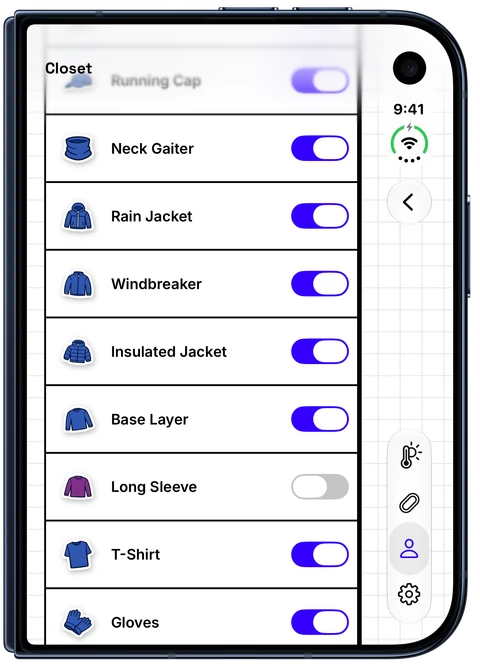
Changes save as you make them. Closet is a list of the app's gear types, including tops, tights, shorts, jackets and accessories. It does not ask you to enter brands, sizes or purchases.
An enabled switch means an item can appear when appropriate; it does not force it into every outfit. Turning off a suggested garment may produce an enabled alternative in the same clothing role. For example, a hidden Long Sleeve can be replaced by an available T-Shirt or Base Layer, depending on the remaining choices and your layering preference.
Some items can disappear without a replacement. If you hide Rain Jacket, Sunglasses or Reflective Gear, the weather and visibility conditions still matter. Closet controls the suggestions you see; it cannot remove the need to consider protection.
3. Compare the same hour and read the explanation
- Return to Forecast.
- Keep the same location, date and selected hour as before the change.
- Find What to wear. Its position can vary with your forecast layout.
- Tap a clothing sticker to read the item's name and explanation. Swipe through the detail view to inspect the other suggestions.
You do not need to refresh the weather just to apply Layering or Closet. The app can update the suggestions from the forecast it already has. A weather refresh or a different selected hour could change the underlying conditions, making a settings comparison harder to interpret.
For a concrete example, imagine planning a 3-mile (5-kilometer) New York park loop. During our October 24, 2026 walkthrough, the selected 11 a.m. forecast showed 54°F (12°C), feels like 54°F (12°C), a 0% rain chance and wind of 4 mph (6 km/h). Those are the dated example's conditions, not a forecast for your next run.
With No preference selected and all Closet items enabled, the app suggested Long Sleeve, Shorts and Light Socks. We changed only one thing: Long Sleeve was switched off in Closet while T-Shirt and Base Layer stayed on. At the same hour, T-Shirt replaced Long Sleeve, with the explanation shown below.
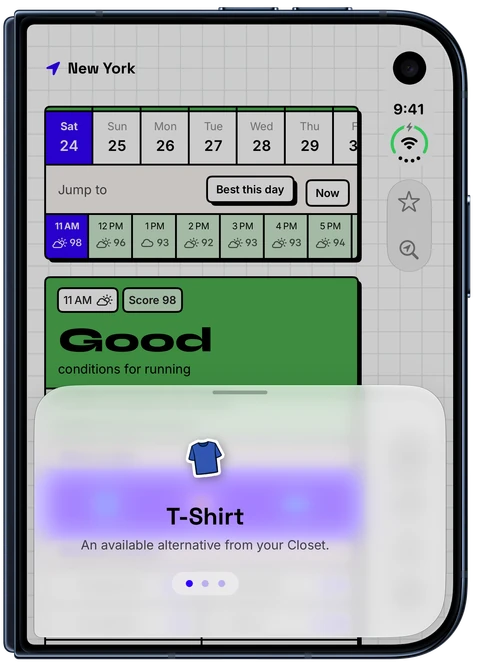
The score remained 98 during this comparison. Turning Long Sleeve back on restored the original top. This demonstrates the setting's effect; it does not mean a T-Shirt is the right choice for every runner at 54°F. Keep your own experience, session length and route in the decision. For broader clothing advice, use the what to wear running guide.
4. Fix missing or unexpected suggestions
“No gear selected.” Open Profile → Closet and turn relevant items back on. If every item for a clothing role is off, the app may have no available replacement. An empty gear strip does not mean the weather calls for no clothing, and buying Plus is not the fix.
An item is enabled but still missing. Enabled means eligible. Check the selected hour and Layering choice. The forecast strip shows up to six suggestions; tap a sticker and swipe through the detail view to inspect the full set for that hour.
A different top or pair of tights appeared. Check whether the original item is hidden. Review the alternatives still enabled in Closet, and tap the new sticker for its explanation. Restore the original item if you want it considered again.
Lighter or Heavier did not visibly change anything. Some hours still produce the same clothing choice. Confirm the checkmark in Profile, compare the same hour, and check that Closet has relevant alternatives enabled.
“Couldn't save changes.” Dismiss the alert and retry. A failed Closet save restores the previous choice, so return to the list and confirm that the switch stayed where you intended.
The score changed as well. Check whether you selected another hour, received a weather update or changed the separate Acclimation controls. Layering and Closet alone do not adjust scores.
Finally, personalized clothing is still a starting point. The National Weather Service explains how wind increases heat loss in cold conditions; hiding a jacket does not change that exposure. Check local alerts and the actual route, and use the cold-weather guide when those conditions apply.
For the full setup routine, return to your first WeatherToRun forecast. You can also browse all app tutorials or explore the WeatherToRun iPhone app.
WeatherToRun for iPhone
Compare hourly running scores, find a better time, and get clothing suggestions on your iPhone. Core forecasts and gear guidance are free. Extra planning and widgets are available with Plus.
Free to download. No account or ads.