Save a run and set a reminder in WeatherToRun
Save your chosen hour and location, choose a reminder that is still ahead, then reopen the plan and recheck conditions before you leave.
By WeatherToRun, updated
Get hourly running scores and clothing suggestions on iPhone. Free core guidance. No account needed.
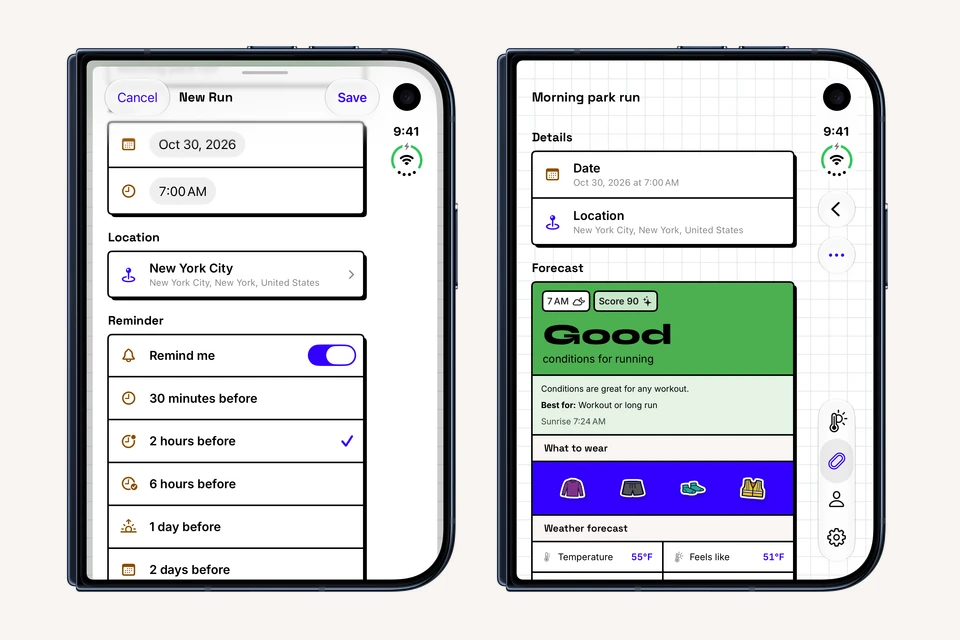
Saving a run in WeatherToRun keeps your chosen start and location ready to revisit. Add a reminder if you want a prompt to check the plan, then reopen the forecast before heading out. You can do this for a single run in the free app.
This tutorial follows WeatherToRun 2.1.26 on iPhone. Real screenshots were captured on October 29, 2026, on an iOS 27.1 iPhone Duo Simulator using the released app's source and its matching device frame. They show a dated example, not a current forecast for your run. On this Duo layout, the Forecast, Runs and Settings tabs sit along the right edge; another iPhone can place them at the bottom.
If you are still choosing a location and comparing hours, start with your first WeatherToRun forecast.
1. Start with a future running hour
- Open Forecast and confirm the place where you will run.
- Select a future date and hour that you could actually use. Compare the conditions with the surrounding hours, including your likely finish.
- Find and tap Create Run. Scroll down if the button is below the weather details.
- In New Run, give the plan a recognizable title, such as Morning park run.
- Check the date, time and location carried into the editor before saving.
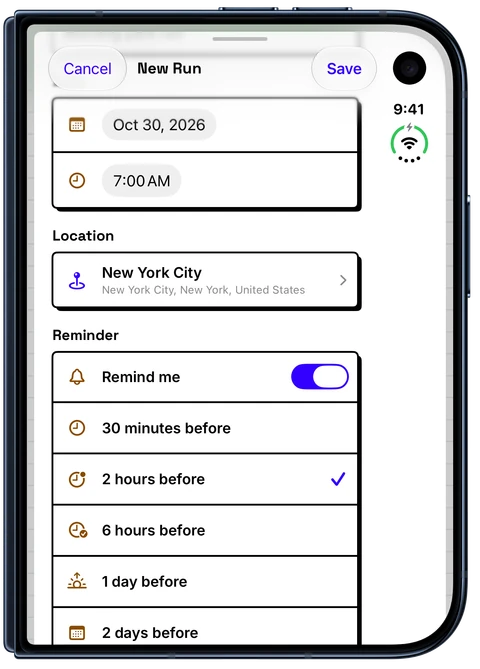
The selected hour must still be in the future. If Create Run is unavailable for the current hour, choose a later hour. The start of the displayed hour may already have passed even though some of its minutes remain.
You can also open Runs and tap the plus button (Add run). The fields initially shown can differ depending on whether the app already has a forecast location. Either way, confirm the actual place and start before saving.
Dates and times in the editor belong to the run location's time zone. A plan for 7 a.m. in New York means 7 a.m. in New York, including when you are editing from another time zone. Check the location and any time-zone note rather than assuming the time follows your phone's current location.
2. Choose details and a reminder, then save
A title, location and future start are enough for a basic plan. Open More details if you want to add an optional distance, notes or Estimated run time. The estimate has Hours and Minutes controls; leaving both at zero skips it. Entering a distance alone does not set your duration.
For a normal outing, keep Run session selected. Race is useful for a race plan; the race-day weather guide explains what to check around the start and finish.
To add a reminder:
- Find Reminder and turn on Remind me. New run reminders start off, so saving alone does not request one.
- Choose 30 minutes before, 2 hours before, 6 hours before, 1 day before or 2 days before.
- Make sure that reminder time is still ahead of you.
- Tap Save at the top of the editor.
- If iOS asks about notifications, allow them if you want reminders. If permission is denied, check the saved run afterward: the app can save the plan without its reminder.
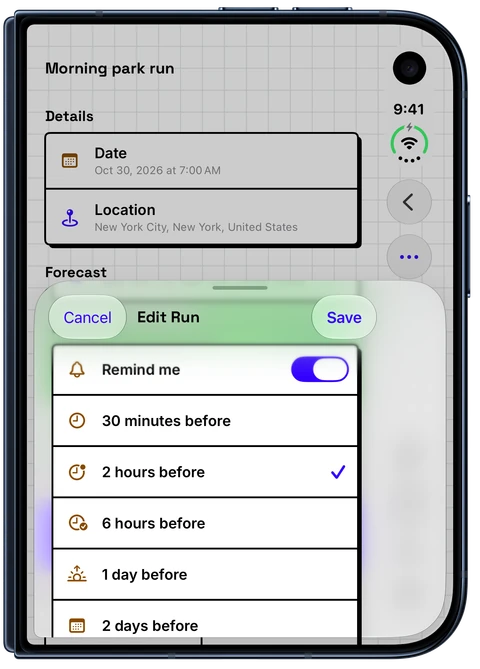
These five per-run reminder choices are available in the free app. Recurrence, under More details, is a separate Plus feature for repeating plans. You do not need it for a one-off run. A custom Daily Reminder clock time is also a separate Plus option, rather than a requirement for a reminder attached to one saved run.
Our example was created on the evening of October 29, 2026, for October 30 at 7 a.m. in New York City. It was named Morning park run, with 2 hours before selected and no duration estimate. That targets a reminder for 5 a.m. New York time. We saved the plan and confirmed it remained available after reopening the app; this walkthrough does not establish that a notification was delivered to a physical iPhone.
3. Reopen the plan and recheck the forecast
- Open Runs.
- Find your plan in Upcoming and tap it.
- Confirm the title, date and location in the saved details.
- Review the forecast and clothing suggestions for that plan before leaving.
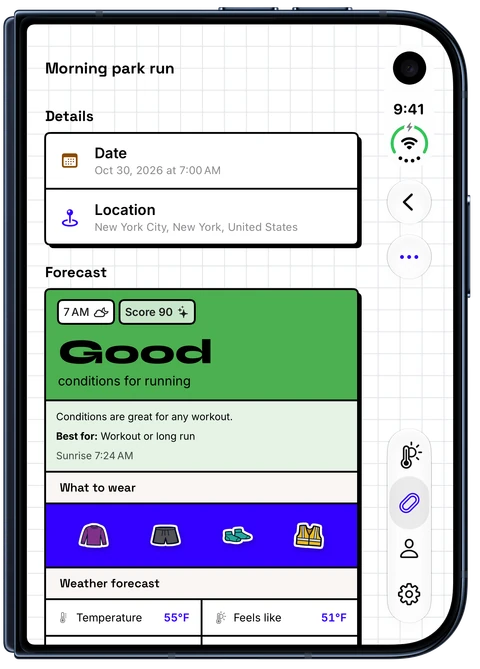
Saving keeps the plan. It does not freeze the weather, record a GPS workout or guarantee conditions along every mile of a route. The app loads forecast information for the saved location and time. For broader planning, read how to choose the best time to run, and use Layering and Closet if you want to personalize the clothing suggestions.
If you add an estimated duration, inspect the available hourly cards across the session. A start-hour score alone cannot describe the finish. The forecast may cover only part of a longer run, and the app can identify hours beyond its available coverage.
For an upcoming one-off plan, open More run actions (the ellipsis), then Edit run to change its details or reminder. A repeating plan can instead offer Edit series, which affects the series. Recheck the reminder after changing a start time.
You can pull down to request a forecast refresh. If an error appears, retained information is not proof of a successful update. Always check local official alerts and the actual route separately; a reminder or a high running score is not safety clearance.
4. Fix a missing reminder or forecast
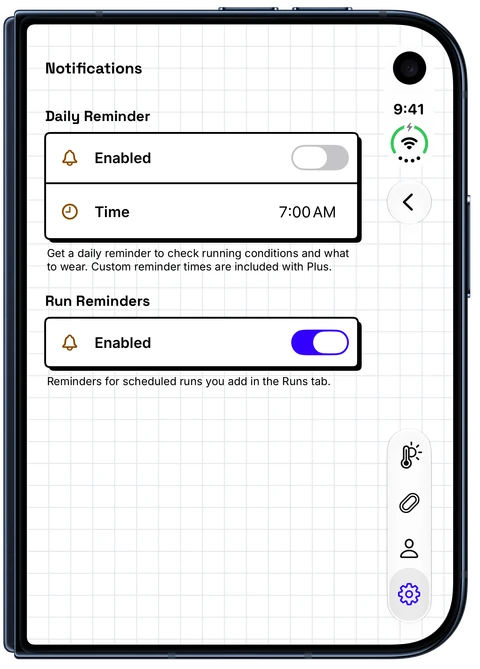
The run saved, but no reminder appeared. Check all three controls: Remind me in the saved run, Settings → Notifications → Run Reminders in WeatherToRun, and notification permission for WeatherToRun in your iPhone settings. The app's global Run Reminders switch is independent of the individual plan.
The chosen lead was already in the past. A run starting in one hour cannot receive a new reminder two hours before its start. The app can still save the run, but skips that reminder instead of sending it immediately. Edit the plan to choose a lead whose reminder time is still in the future.
iPhone notifications are off or delayed. Open iPhone Settings → Notifications → WeatherToRun and review Allow Notifications and your preferred alert display. Also check whether Focus or Scheduled Summary affects presentation. Apple's notification settings instructions explain these controls. Adjust them to your needs; delivery is not guaranteed by a saved-plan screenshot.
You expected a weather update inside the reminder. A run reminder prompts you to open WeatherToRun. It does not contain a fresh forecast or act as an official weather warning. Open the saved run to check its conditions.
The app says Weather not ready yet. Saving a distant date does not extend the forecast. The app offers roughly ten days, with actual provider coverage determining what is available. Read any displayed cutoff and try again closer to the run. An unavailable future forecast does not mean your saved plan has disappeared.
Start with one run you intend to revisit. Save the correct place and future start, choose a reminder whose time is still ahead, and recheck the forecast before leaving. Explore all WeatherToRun tutorials or the iPhone app overview for the next useful task.
WeatherToRun for iPhone
Compare hourly running scores, find a better time, and get clothing suggestions on your iPhone. Core forecasts and gear guidance are free. Extra planning and widgets are available with Plus.
Free to download. No account or ads.